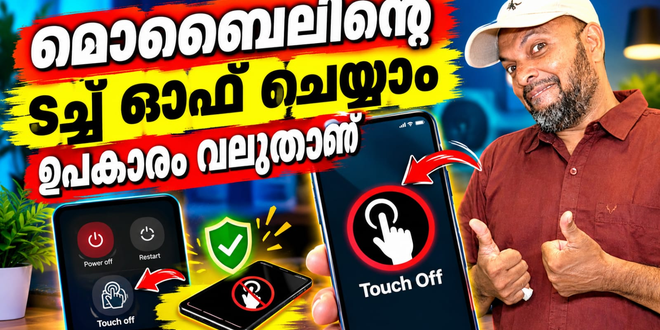
Accidental screen touches can interrupt videos, change settings or close an application while you are using your Android phone. They can also happen when children hold a device or when you want to keep a particular screen open without unwanted interaction. Touch Lock – Disable Touch by ColdCherry is a simple Android utility designed to prevent these interruptions by temporarily disabling touchscreen input. Touch Lock App.
What Is Touch Lock – Disable Touch?
Touch Lock is a utility app that helps users block unintended touches on their phone’s display. Once activated, it disables touch input on the screen, allowing users to keep the current display undisturbed. The app provides a control notification and a Quick Settings tile for convenient access.
Key Features
1. Disable Accidental Touches
The main purpose of Touch Lock is to prevent unwanted screen interactions. It can be useful when showing something on your phone, playing a video or keeping an application open without accidental taps changing the display.
2. Quick Settings Tile
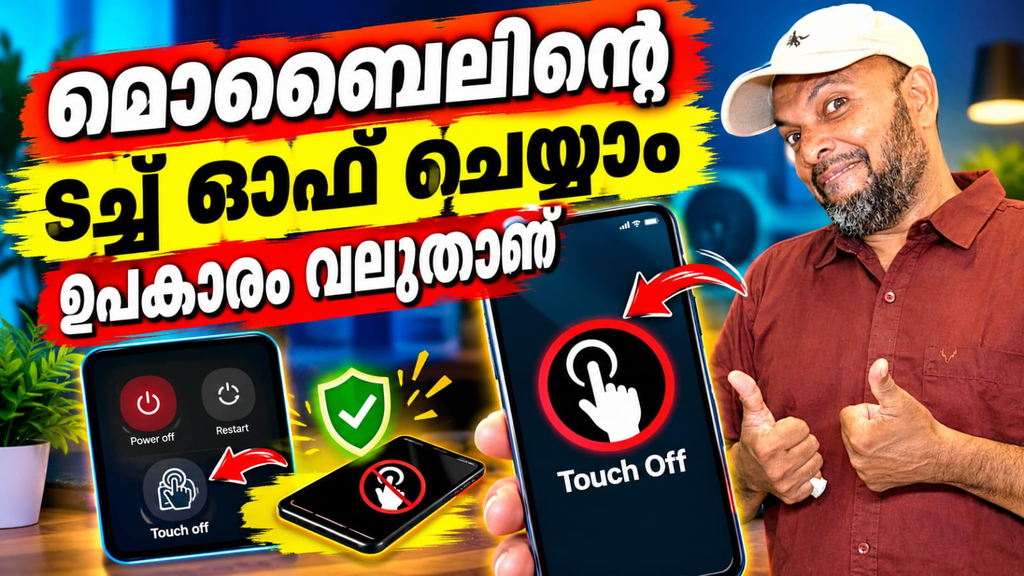
The Quick Settings tile makes activating the touch lock easier. On supported Android devices running Android 7 or later, users can access the feature directly from the notification shade without repeatedly opening the application.
3. Auto Unlock When the Phone Rings
The app includes an automatic unlocking feature that responds when the phone receives a call. This helps users regain access to the touchscreen without manually searching for the control.
4. Control Notification
Touch Lock provides a dismissible control notification that lets users manage the lock. After enabling the notification, they can use it to access the touch-lock controls. The latest listed update also adds a floating unlock button if the notification is swiped away.
5. Password and Fingerprint Unlock
The newer version introduces password and fingerprint unlocking options. These provide additional ways to regain touchscreen access when the lock is active.
6. Night Theme
The built-in night theme offers a darker interface for users who prefer using applications in low-light environments.
How to Use Touch Lock
Getting started is straightforward. Open the app, grant the requested permissions and enable the control notification. You can then activate the lock through the notification or Quick Settings tile. Follow the in-app instructions to manage the feature.
Important Limitations
Touch Lock does not currently disable navigation buttons or the status bar. Therefore, some system controls may remain accessible even when touchscreen input is locked. Users should understand this limitation before relying on it for complete device control.
Touch Lock – Disable Touch is a practical Android utility for people who want to prevent accidental screen interactions. Its Quick Settings access, automatic unlocking, notification controls and newer unlocking options make everyday use convenient. It is worth considering for temporary touchscreen control, although its navigation and status bar limitations should be kept in mind.
Touch Lock app, Disable Touch Android, touchscreen lock app, prevent accidental touches, Android touch screen lock, Quick Settings touch lock, ColdCherry Touch Lock.